
Installation#
You can install Regolith using several methods, depending on your operating system. This section provides instructions for installing Regolith on Linux, Mac, and Windows systems.
Winget (Windows)#
To install Regolith using Winget, open a command prompt or terminal window and enter the following command:
winget install Bedrock-OSS.regolith
This command searches the Winget repository for the Bedrock-OSS.regolith package and installs it on your system. Upon successful installation, a confirmation message will appear.
To update Regolith in the future, run the following command:
winget upgrade Bedrock-OSS.regolith
This checks for available updates to the Regolith package and installs them if found.
Warning
Not all Windows computers have Winget pre-installed. If Winget is unavailable on your system, you can install Regolith using the MSI file provided on GitHub (see the next section for instructions).
MSI File (Windows)#
You can also install Regolith using the MSI file available on its GitHub release page.
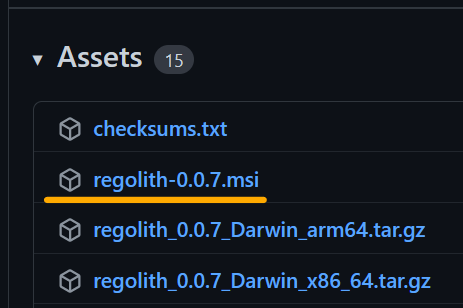
The MSI file follows the naming pattern regolith-x.x.x.msi, where x.x.x represents the version number.
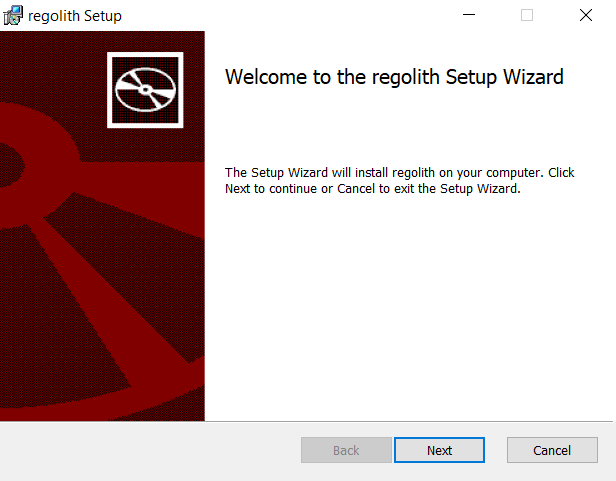
Simply download the MSI file from the link above and run it to begin the installation process. Follow the prompts to complete the installation.
Updating (Windows)#
To update Regolith after installation, use the included regolith-update.ps1 PowerShell script. Follow these steps:
Open a PowerShell window.
Run the following command:
regolith-update.ps1
The script will check for available updates to Regolith and install them.
Stand-alone Executable File (Linux, Mac, and Windows)#
Regolith can also be installed as a stand-alone executable. Download the appropriate ZIP file for your operating system from the GitHub release page.
For Windows, the file is typically named regolith_x.x.x_Windows_x86_64.zip.

Unzip this package, and place the Regolith executable file somewhere convenient. In stand-alone mode, you will need a add the executable to your PATH environment variable or copy it into every project.
Checking Installation#
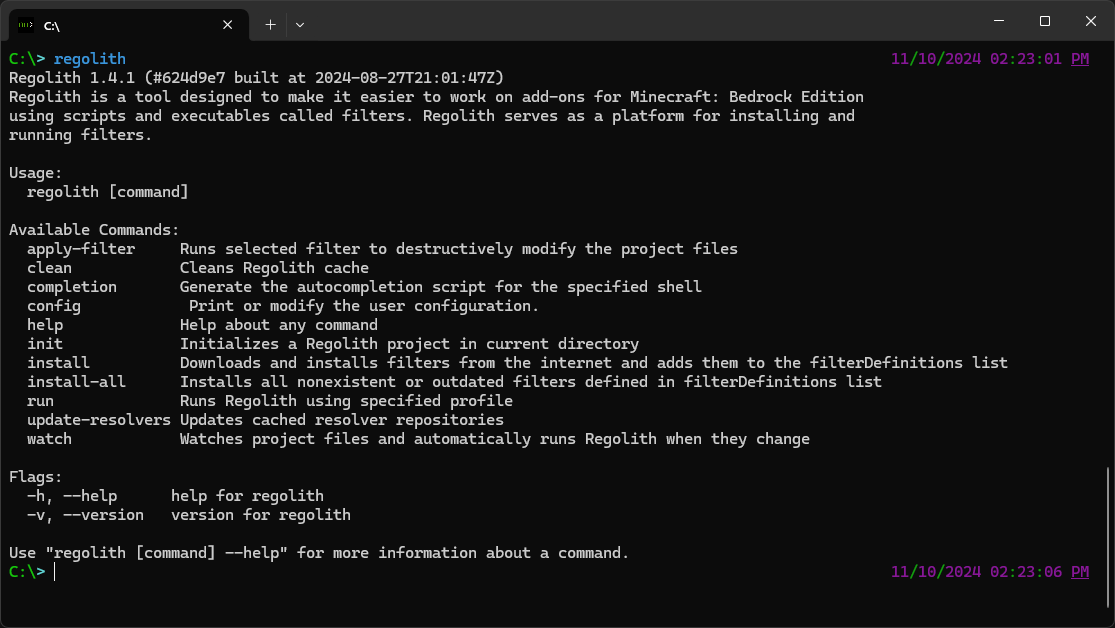
After installing, Regolith can be used in command-prompt by typing regolith. You should see something like this:
Note
If you don’t see this try restarting your terminal. If you encounter any issues, please refer to the troubleshooting guide for tips.